
You are using an out of date browser. It may not display this or other websites correctly.
You should upgrade or use an alternative browser.
You should upgrade or use an alternative browser.
PHẦN MỀM Những phần mềm hay sử dụng trên SmaWM5.0
- Thread starter ngoctuan
- Ngày gửi
lostempire
New member
hihi bac c720 nay giống mình quá. Các đại cao thủ chỉ cho em cách down cái font tiếng việt nó ở chỗ nào với
em dang o nuoc ngoai, em co con smatphone HTC S620 font tieng phap, muon cai tieng viet de doc chuyen vietnam qua ma tim mai tren mang khong thay . Co bac nao co phan mem tieng viet dung cho HTC S620 (T-mobile) cho em xin duoc ko. xin cam on nhieu
BÁC kết nói với comp rồi copy font của window vào SP e thấy cách đó cũng coi đc
bạn có thể gửi cho mình xin bản IM+ đã mở rùi không ? Mình đang xài Samsung i600 WM5. Thanks
quan.bim2@yahoo.com
quan.bim2@yahoo.com

Anh thử cái MagiCall này xem, chặn cũng tốt lắmTớ không chạy được Smart Filter 1.3 trên SDA WM06


Anh thử cái MagiCall này xem, chặn cũng tốt lắm
sao mình cài cái này mà p.a.t.c.h cứ báo lỗi nhỉ. Bác nào chỉ giúp với!

Giờ các Smartphone cũng đã ra khá nhiều đời máy có qwerty ,HTC 3-4 mẫu ,Samsung cũng 3-4 mâu ,Moto cũng có ... thế mà chưa có bộ gõ TV cho dòng này ,buồn quá !

bác có theme cho cingular2125 hok cho em xin 1 cái đi ạ.con này wm5.0 nha


Điều khiển PHone trên PC

Put your smartphone on your desk and control it fully from your PC.
If your smartphone is your favorable medium of communication, mDesktop will clear the channel and make your work easier and more comfortable.
Integrate your smartphone with your PC via mDesktop and make calls, send SMS messages and use your smartphone's data and applications from your PC's big screen and keyboard in a comfortable, practical, fun and user friendly way.
Phone:
With mDesktop you can make all of your calls just by dialing from your computer keyboard and screen.
* Handle all incoming calls via screen-pop dialog on your PC, in a well designed, highly functional and comfortable graphic environment of mDesktop software
* Handle multiple phone calls with ease
* Put a call on hold or speakerphone with a mouse click
* If you use earphones or speakerphone, with mDesktop you don't even have to touch your smartphone - just click on PC screen and talk over the phone
SMS:
Now you can now handle your SMS messages on your PC screen completely like on your smartphone, and more: mDesktop offers some additional functions which will improve your communication and make it faster, easier and more comfortable:
* Send and read SMS messages from your PC, using mouse and keyboard, with preferable colors for SMS threads
* Have messenger-like, threaded SMS chat using your computer screen and keyboard
* Simply select one or more contacts to send an SMS message to multiple recepients
* Print, copy and paste complete SMS threads, formatted or in plain text. E-mail or archive your SMS conversations
Contacts:
mDesktop makes your contact list handling simple and fast.
* Browse and update contacts stored on your phone directly from PC
* Call or send SMS with a single mouse click directly from contact list
* No sync required! Everything is working on the fly
* Search your contacts by name, phone number, company...
Pictures:
Handling pictures on your smartphone is fast, easy and simple with mDesktop and all your work is now manageable from your PC
* View photos from the phone in an easy and user friendly manner
* Copy your smartphone photos to and from your computer with a drag-and-drop
Calendar, To Do and Agenda:
Keep the agenda on your phone current and use your big screen and keyboard to do the work. And if data gets synced with a server, mDesktop will not interfere.
* View your appointments and tasks on a big screen
* Add new tasks and appointments by typing on the PC's keyboard
Screen Mirror:
A real cool tool - map the screen of your phone to the PC, in real time. Ideal for presentations, demos, grabbing screen shots, configuring your phone...
* Real-time mirror of your phone's screen on PC desktop
* Map the PC keyboard to smartphone keys
* Use the mouse as a phone stylus
File Browser:
Use your phone as a USB thumb drive and browse the content on the device and its SD card from your desktop computer trough fast and secure connection.
* Drag & drop files between PC and phone
* Open the files directly from your phone
* Browse folders on the phone, create new ones, delete the unused - and all the other stuff you expect from a file browser
Favorites and Installs:
Installing new apps on your phone, or adding Internet favorites to your pocket browser was never so easy as it is with mDesktop. Just drag & drop:
* Drag & drop a CAB file from your PC to install it on a phone
* Drag a URL from your PC browser to phone to turn it into a mobile favorite
System Info:
Check vital signs of your phone. Performance, memory, battery status, device info and more.
What's New in This Release:
· Completely new look
· Auto connect feature - if device is connected with PC (via USB or Bluetooth), mDesktop automatically launches
· Preferences - choose mDesktop's behavior for various functionalities
· Adding contacts to your smartphone list on your PC
· View, edit, and delete the contact
· Adding contacts to favorites
· File operations on your phone (open, cut, copy, rename, create new folders)
· Create, edit and delete tasks and appointments
· SMS can be much longer now - mDesktop expanded the number of characters allowed for SMS
· More convenient call handling
· See active phone screen in the corner at any time (phone peek). Hover to enlarge
· User friendly behavior - tool tips for each button.
Tải
Theo dõi dung lượng dữ liệu kết nối GPRS, cũ mà hay
Efficasoft Smartphone GPRS Traffic Monitor[Special Version] v3.51w Before installing this Special Version, please first try the STANDARD VERSION v3.6!
Some recent Windows Mobile 5/6 Smartphones establish GPRS connection in a different way that standard version of Smartphone GPRS Traffic Monitor cannot monitor. This special version v3.51w is especially built to target the issue.
Known supported models
Smartphone GPRS Traffic Monitor (Special Edition) v3.51w
Release date: September 18, 2006
Size: 84KB Filename: SPGTC351wSetup.exe
* Please remember fill in your Smartphone Owner Name (case sensitive)
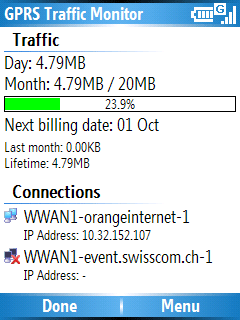
How to Use
Tải


PocketX Photo Contacts PRO v5.05 for Smartphone
Tải
Put your smartphone on your desk and control it fully from your PC.
If your smartphone is your favorable medium of communication, mDesktop will clear the channel and make your work easier and more comfortable.
Integrate your smartphone with your PC via mDesktop and make calls, send SMS messages and use your smartphone's data and applications from your PC's big screen and keyboard in a comfortable, practical, fun and user friendly way.
Phone:
With mDesktop you can make all of your calls just by dialing from your computer keyboard and screen.
* Handle all incoming calls via screen-pop dialog on your PC, in a well designed, highly functional and comfortable graphic environment of mDesktop software
* Handle multiple phone calls with ease
* Put a call on hold or speakerphone with a mouse click
* If you use earphones or speakerphone, with mDesktop you don't even have to touch your smartphone - just click on PC screen and talk over the phone
SMS:
Now you can now handle your SMS messages on your PC screen completely like on your smartphone, and more: mDesktop offers some additional functions which will improve your communication and make it faster, easier and more comfortable:
* Send and read SMS messages from your PC, using mouse and keyboard, with preferable colors for SMS threads
* Have messenger-like, threaded SMS chat using your computer screen and keyboard
* Simply select one or more contacts to send an SMS message to multiple recepients
* Print, copy and paste complete SMS threads, formatted or in plain text. E-mail or archive your SMS conversations
Contacts:
mDesktop makes your contact list handling simple and fast.
* Browse and update contacts stored on your phone directly from PC
* Call or send SMS with a single mouse click directly from contact list
* No sync required! Everything is working on the fly
* Search your contacts by name, phone number, company...
Pictures:
Handling pictures on your smartphone is fast, easy and simple with mDesktop and all your work is now manageable from your PC
* View photos from the phone in an easy and user friendly manner
* Copy your smartphone photos to and from your computer with a drag-and-drop
Calendar, To Do and Agenda:
Keep the agenda on your phone current and use your big screen and keyboard to do the work. And if data gets synced with a server, mDesktop will not interfere.
* View your appointments and tasks on a big screen
* Add new tasks and appointments by typing on the PC's keyboard
Screen Mirror:
A real cool tool - map the screen of your phone to the PC, in real time. Ideal for presentations, demos, grabbing screen shots, configuring your phone...
* Real-time mirror of your phone's screen on PC desktop
* Map the PC keyboard to smartphone keys
* Use the mouse as a phone stylus
File Browser:
Use your phone as a USB thumb drive and browse the content on the device and its SD card from your desktop computer trough fast and secure connection.
* Drag & drop files between PC and phone
* Open the files directly from your phone
* Browse folders on the phone, create new ones, delete the unused - and all the other stuff you expect from a file browser
Favorites and Installs:
Installing new apps on your phone, or adding Internet favorites to your pocket browser was never so easy as it is with mDesktop. Just drag & drop:
* Drag & drop a CAB file from your PC to install it on a phone
* Drag a URL from your PC browser to phone to turn it into a mobile favorite
System Info:
Check vital signs of your phone. Performance, memory, battery status, device info and more.
What's New in This Release:
· Completely new look
· Auto connect feature - if device is connected with PC (via USB or Bluetooth), mDesktop automatically launches
· Preferences - choose mDesktop's behavior for various functionalities
· Adding contacts to your smartphone list on your PC
· View, edit, and delete the contact
· Adding contacts to favorites
· File operations on your phone (open, cut, copy, rename, create new folders)
· Create, edit and delete tasks and appointments
· SMS can be much longer now - mDesktop expanded the number of characters allowed for SMS
· More convenient call handling
· See active phone screen in the corner at any time (phone peek). Hover to enlarge
· User friendly behavior - tool tips for each button.
Tải
Theo dõi dung lượng dữ liệu kết nối GPRS, cũ mà hay
Efficasoft Smartphone GPRS Traffic Monitor[Special Version] v3.51w Before installing this Special Version, please first try the STANDARD VERSION v3.6!
Some recent Windows Mobile 5/6 Smartphones establish GPRS connection in a different way that standard version of Smartphone GPRS Traffic Monitor cannot monitor. This special version v3.51w is especially built to target the issue.
Known supported models
- QTEK 8500, i-mate SmartFlip, Dopod S300, Dopod 710, Orange SPV F600, Cingular 3125
- HTC S310, Orange SPV C100, Dopod 310
- HTC S620, T-Mobile Dash, T-Mobile MDA Mail, O2 Xda Cosmo, Dopod C720W, Dopod C720, Orange SPV E600
- HTC S710, Vodafone VDA V, Orange SPV E650
- Samsung BlackJack
Smartphone GPRS Traffic Monitor (Special Edition) v3.51w
Release date: September 18, 2006
Size: 84KB Filename: SPGTC351wSetup.exe
* Please remember fill in your Smartphone Owner Name (case sensitive)
How to Use
- Make sure your phone can access the Internet via GPRS.
- Go to 'Start->Settings->Connections->GPRS', you will see things like "O2 Internet", "Orange GPRS", "Orange WAP" or "Cingular MMS" etc.
The Internet, GPRS and WAP ones are normally the connections you want to monitor. - Open the connections you want to monitor ("Menu/Edit" or simply press the "Action" key), make a note of their "Access Point" (e.g.Orangeinternet).
- Launch Smartphone GPRS Traffic Monitor v3.51w, go to "Options".
- In "Monitor Connections", you will see items like "RndisFn", "RNDISFN1", "WWAN1" and "WWAN-xxxxx-1" etc. The "WWAN-xxxxx-1" ones are what we want to look at, where "xxxxx" should be the name of those "Access Point" (e.g. WWAN-Orangeinternet-1) and corresponds to the connections in step 2. Simply select/check the ones you want to monitor and press "Done".
- "RNDISFN1" is the ActiveSync connection established between your PC and the phone. It can also be monitored if you want.
Tải
PocketX Photo Contacts PRO v5.05 for Smartphone
Tải